


Managing the Digital Cockpit: Customize Your New Chevy
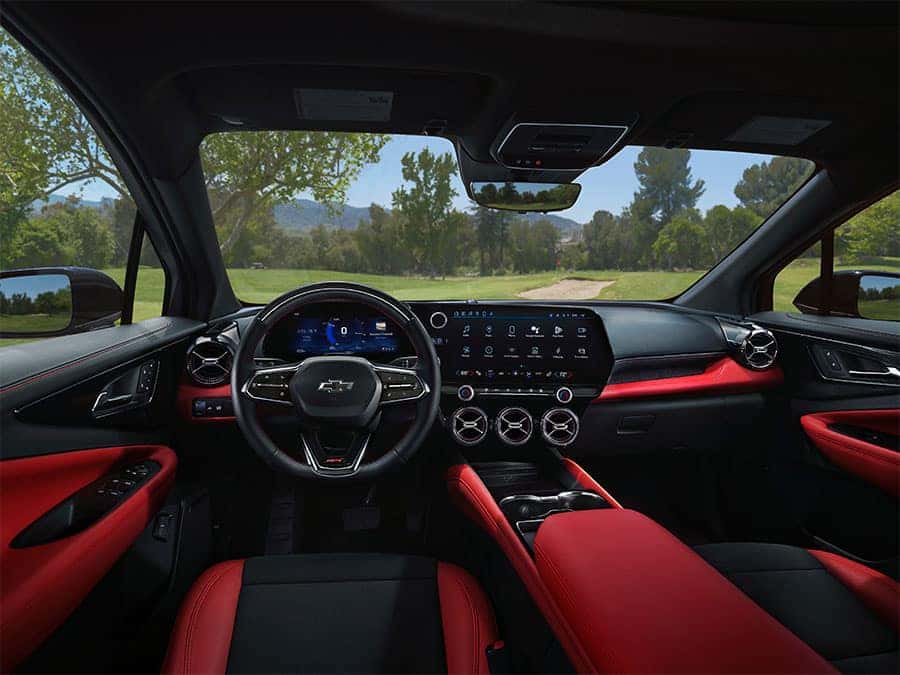
If you have been car shopping lately, you have probably noticed the screen has become a big part of the driving experience. For some people, that is exciting. For others, it can feel like one more thing to learn.
Either way, you do not need to be a tech expert to make your new Chevy feel familiar. A little setup goes a long way. When you personalize your digital cockpit, your drive gets easier, your commute feels smoother, and your favorite entertainment is always ready to go.
This guide is here to help you get comfortable fast, especially if you are moving from a setup that relied heavily on phone projection to a system that leans more on built-in apps, profiles, and connected services.
What the digital cockpit means in a new Chevy
Think of the digital cockpit as the place where your vehicle helps you manage the day. It is where navigation, music, calls, messages, and shortcuts live together. It is also where you set preferences that make the vehicle feel like yours.
In many newer Chevys, the infotainment experience can include Google built-in features such as Google Maps, Google Assistant, and apps through Google Play, plus driver profiles and connected services. Availability depends on the vehicle.¹ ²
A quick glossary
Built-in apps
Apps that run on the vehicle’s infotainment system.
Phone pairing
Connecting your phone for calls, audio, contacts, and messaging features.
Driver profile
A saved set of preferences that can include things like favorites and certain settings, depending on the vehicle.
Connected service plan or trial
Connectivity that can power features like in-vehicle Google apps and updates. Many vehicles include an initial connectivity period, and plan options can vary after that.¹ ² ³
Your first 30 minutes setup checklist
If you do nothing else, do these steps first. They cover the most common questions we hear from drivers who want the system to feel simple and predictable.
1. Pair your phone for calls and audio
Start with Bluetooth pairing so phone calls and audio work smoothly. Enable contact access if you want hands-free calling by name.
If you share the vehicle, pairing each driver’s phone helps avoid the classic driveway problem where the car connects to the wrong device.
2. Create a driver profile if your Chevy supports it
If your Chevy supports driver profiles, set yours up right away. Give it a clear name. Save a couple of favorites and preferences so the vehicle recognizes your routine.
3. Set up navigation for your real routes
Pick the navigation experience you want to use most often, then set it up the way you like.
- Save Home and Work
- Add a few weekly destinations as favorites
- Set guidance preferences so it matches how you drive
If your weekday routine runs up and down Providence Highway, saving your go-to stops means fewer taps when traffic is moving and you want to keep your focus on the road.
4. Make audio feel effortless
Choose your favorite music or podcast app and sign in if needed. Then do these quick wins.
- Set a default audio source
- Save a few favorites
- Adjust audio settings so voices sound clear and music feels balanced
5. Put the right shortcuts on the home screen
Most drivers do not want more features. They want fewer taps.
Look for shortcuts like:
- Home tiles for navigation and audio
- A favorites bar
- Recent destinations
- Quick access to phone controls
Once your home screen is organized, the system feels less like a tablet and more like a tool.
Do you need a data plan or service plan
This is one of the biggest topics online. The good news is that you have options, and you can choose based on how you actually drive.
Option 1. Use home Wi-Fi for downloads and updates when available
If your vehicle supports Wi-Fi connections, you may be able to handle certain downloads and updates at home. This can be a great low-effort approach if you mainly use the system for basics.
Option 2. Use your phone hotspot when you want it
If you stream occasionally or want connectivity on certain trips, your phone hotspot can be the simplest approach.
Option 3. Use an in-vehicle connectivity plan for maximum convenience
Some features, including Google Assistant, Google Maps, and apps from Google Play, may require a connected service plan or an included trial, depending on the vehicle. Once an included connectivity period ends, plan options can vary.¹ ² ³
No plan, no problem: what still works
If you decide not to continue a connectivity plan, you are not locked out of having a good experience.
Depending on the vehicle, you can still use features like:
- AM and FM radio
- Streaming audio from a paired phone
- Voice control through your connected phone’s compatible voice assistant
- Vehicle settings and certain built-in tools, if equipped
Some vehicles may also support Apple CarPlay or Android Auto projection, depending on model and model year.²
Personalize it for your real life around Norwood
A great setup is not about having every app. It is about building a system that matches your routine.
If your week includes the Route 128 loop
Save your most common destinations and set a few quick favorites.
- Work and a backup work location
- A regular parking spot or commuter destination
- A reliable coffee stop for early mornings
When traffic changes fast near the interchanges, having favorites ready makes rerouting feel effortless.
If your vehicle is the family car
Profiles and favorites can save a lot of small frustrations.
- Set up separate driver profiles if available
- Create a shared favorites list for weekly stops
- Keep audio favorites organized so you are not hunting while everyone is talking
If your weekends include a loop through places like Legacy Place, a clean favorites list makes the cabin feel calmer.
If you want the vehicle to be your entertainment zone
This is where the digital cockpit shines.
- Sign in to your preferred audio services
- Save playlists for different moods
- Set a default source so it starts where you want, every time
It is a small change that makes the drive home feel like a break instead of another task.
Add the myChevrolet app to your routine
A lot of drivers forget that your digital cockpit can extend to your phone. The myChevrolet app can help you check key vehicle info and use remote features on properly equipped vehicles.⁴
If you want the easiest experience, set it up once and keep it on your home screen.
Privacy settings
Connected features can be helpful, but you should still feel in control. Spend two minutes reviewing these areas.
- Location and sharing settings
- App permissions like contacts and microphone
- Notification preferences, especially message previews
If you prefer not to use wake-word listening, some vehicles allow you to turn off the “Hey Google” prompt while still using the push-to-talk button when you want it.¹
Quick fixes
The car connects to the wrong phone
Turn Bluetooth off on the other phone or remove the pairing you no longer need.
Audio keeps switching to a source you do not use
Set your default audio source and remove unused favorites.
Navigation voice is too loud or too quiet
Adjust guidance volume while guidance is speaking, since guidance volume can be separate from music volume.
Apps are not loading
Check connectivity first. If it continues, a system restart or an update may help, and your Owner’s Manual can point to model-specific steps.
The point is not more tech. It is a better drive.
Online chatter can make new infotainment systems feel complicated. In real life, most drivers just want a setup that feels natural. Once your profile, favorites, navigation, and audio are dialed in, the digital cockpit becomes what it should be.
It becomes a tool that supports your day.
If you are picking up a new Chevy soon or you are still shopping and want to see how it feels in person, stop by Nucar Chevrolet of Norwood at 381 Providence Hwy #1, Norwood, MA 02062. We can help you pair your phone, set up your profile, and get the basics dialed in before you head out and you’ll see why Everyone loves a Nucar!
Sources
- https://www.chevrolet.com/technology/google-built-in
- https://www.onstar.com/support/faq/google-built-in
- https://www.onstar.com/content/onstar/na/us/en/index/pricing.html
- https://www.chevrolet.com/support/vehicle/smartphone-connections/mychevrolet-mobile-app/instructions
0 comment(s) so far on Managing the Digital Cockpit: Customize Your New Chevy